(Cross-posted on the Inside Search blog)
The search button located below the search box provides quick access to specific types of results like Images, Videos, Places, Shopping and more. Just tap to open the search menu and select an option to see results in one category.

For image results, we focused on improvements that enhance the viewing experience such as enlarged image previews, continuous scroll, and faster loading of image thumbnails.

This improved search experience is rolling out in the coming days to iPad and Android 3.1+ tablets across 36 languages. Give it a try by going to www.google.com in your tablet’s browser.
Posted by Xiaorui Gan, Software Engineer
Today, Google Maps added public transport directions for London within Google Maps, including Google Maps for mobile on iOS, Blackberry, and Android-powered devices. Now, whether you live in London or are just visiting, you can get public transport directions on your mobile device.

Public transport directions in Google Maps for Android
Google Maps for mobile uses your current location to determine the best trip to your destination. Just search for your destination location, select it on the map and choose the “Directions” option. The suggested trips will be based on your location by default, and provide you multiple alternatives whenever possible.
If you’re using an Android-powered device, you can also get public transport directions with Transit Navigation (Beta) in Google Maps. With this feature, you’ll get alerts when it’s time to get off the bus or train at your destination or to make a transfer. We hope that public transport directions in London make getting around town more convenient!
Posted by Thijs van As, Associate Product Manager, Transit Directions
Today, Google Maps 5.8 for Android improves Places and Latitude with:
- Upload photos for a Place
- My Places as a simple way to manage the Places you’ve starred and recently viewed
- Descriptive terms for Places in search results
- Add a new Place on-the-go when checking in
When deciding on a place to go, people often want to know what a place looks like in addition to seeing ratings and reviews. You can now contribute photos to help others get a sense of places. You can now attach your photos to Places, and yours may even become the profile picture for that page. If you want to view or delete any photos you’ve contributed to Places, you can manage uploaded photos in the “Photos for Google Maps” album on your Picasa account.
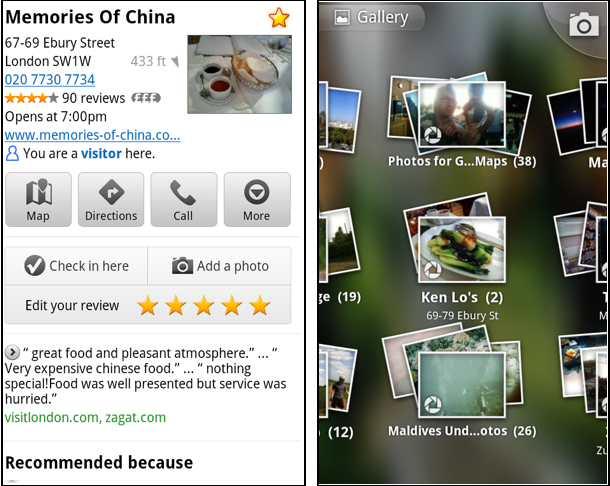
My Places and descriptive terms for mobile
In June we announced descriptive terms and ‘My Places’ for the desktop. Both these features are now in Google Maps for mobile. Descriptive terms appear in search results for Places to inform you what businesses are ‘known for,’ such as their ‘eggs benedict’ or being ‘worth the wait.’
Also, My Places for mobile provides quick access to starred and recent Place pages you’ve looked at. You can access My Places by pressing your phone’s menu button while in Google Maps.

Add a new Place ‘on-the-go’ for check-ins
If you’re out and about and want to check in, we want to make sure you can quickly add a new Place to check into if one isn’t available. This might happen for new businesses or those that haven’t set up a Place page yet. For example, let’s say you’re at Xoogle Xtreme Sports, a new sports shop in your neighborhood. You go to check in but don’t see Xoogle in the list of places to check into and when you do a search still nothing comes up.

To solve this, you’ll now see an “Add place” option at the bottom of suggested places. Select that option, and you’ll be prompted to confirm the name and location of the new place. Then a brand new place is added (and you’re checked in). This place will be available for you and others to check into from Latitude, but will not appear as a search result in Google Maps or Google Places.
We’ve also added ‘Bigger text’ to our experimental Labs features and ‘Download map area’ has been renamed ‘Pre-cache map area.’
To start using Google Maps 5.8 for Android, download the update here. This update requires an Android OS 2.1+ device and can be used anywhere Google Maps is currently available. Learn more in our help center.
Posted by Benjamin Grol, Product Manager
In case you missed my tweets earlier this week, MartianCraft is looking to add a few developers. We're looking for a couple of experienced developers, and are also thinking about bringing in one or two entry-level devs without significant experience to be trained up.
Initially, the work would be project-based contracting and would start in late August. Conversion to full-time employment is a possibility, but not right away.
If you're interested in being considered, send an e-mail with relevant work experience and/or résumé/CV to work@martiancraft.com.
Initially, the work would be project-based contracting and would start in late August. Conversion to full-time employment is a possibility, but not right away.
If you're interested in being considered, send an e-mail with relevant work experience and/or résumé/CV to work@martiancraft.com.
(Cross-posted on the Google Commerce Blog)
We’ve recently made a few new changes to Google Shopper for iPhone that makes it easy to find nearby deals when you’re on-the-go.
In the latest version of Google Shopper, in addition to the ‘Shop’ tab, you’ll now see two new tabs at the bottom of the app: Offers and My Offers. The Offers tab displays a list, or map view, of nearby offers which businesses have submitted through Google Places - from restaurant and movie theater deals to discounts on tennis lessons or a round of golf.
Let's say you come across an offer for free dessert at a nearby restaurant, but you won't have time to use it until the weekend. You can save the offer for future use, then later view and redeem it from the My Offers tab.
Additionally, if Google Offers are available in your city, you’ll be able to view and redeem your purchased offers on the My Offers tab. Google Offers are currently available in Portland, Oregon, the San Francisco Bay Area and New York, with other cities to follow.

Google Shopper 1.5 is currently available for iPhone users in the US and UK with iOS 4.0 and higher. If you’re a current Google Shopper user, you’ll automatically receive an update. Download Google Shopper 1.5 by visiting the App Store. To download Google Shopper for Android, visit Android Market.
Posted by Richard Hung, Product Manager, Google Shopper Team
We’ve recently made a few new changes to Google Shopper for iPhone that makes it easy to find nearby deals when you’re on-the-go.
In the latest version of Google Shopper, in addition to the ‘Shop’ tab, you’ll now see two new tabs at the bottom of the app: Offers and My Offers. The Offers tab displays a list, or map view, of nearby offers which businesses have submitted through Google Places - from restaurant and movie theater deals to discounts on tennis lessons or a round of golf.
Let's say you come across an offer for free dessert at a nearby restaurant, but you won't have time to use it until the weekend. You can save the offer for future use, then later view and redeem it from the My Offers tab.
Additionally, if Google Offers are available in your city, you’ll be able to view and redeem your purchased offers on the My Offers tab. Google Offers are currently available in Portland, Oregon, the San Francisco Bay Area and New York, with other cities to follow.

Google Shopper 1.5 is currently available for iPhone users in the US and UK with iOS 4.0 and higher. If you’re a current Google Shopper user, you’ll automatically receive an update. Download Google Shopper 1.5 by visiting the App Store. To download Google Shopper for Android, visit Android Market.
Posted by Richard Hung, Product Manager, Google Shopper Team
Since launching Nexus S with Samsung, T-Mobile and Sprint customers have enjoyed the pure Google experience, running the latest Android releases and Google mobile apps. Today we’re excited to announce a Nexus S device optimized for AT&T, available in Best Buy stores this weekend.
Nexus S runs Android 2.3 and features a 4” Super AMOLED screen, a 1 GHz processor for showing 3D graphics, front and rear facing cameras and support for NFC. It also features the latest Google mobile apps, including Google Earth, Google Maps with Navigation, Google Talk with video chat, Google Voice and Voice Actions, as well as access to more than 250,000 apps in Android Market.
Nexus S for AT&T will be available in Best Buy stores starting July 24. For those of you who just can’t wait, it’s on pre-sale today in Best Buy stores.
You can find more information at google.com/nexus or follow @googlenexus on Twitter for the latest Nexus S updates. And if you need something to pass the time until you can get your hands on one, try our Nexus Contraptions game, where you can bubble, bounce, and bump apps into the phone.
Updated 1:09pm 7/21/2011: Pre-sales are currently only available in Best Buy stores, not on www.bestbuy.com.
Posted by Hiroshi Lockheimer, Director of Engineering
Nexus S runs Android 2.3 and features a 4” Super AMOLED screen, a 1 GHz processor for showing 3D graphics, front and rear facing cameras and support for NFC. It also features the latest Google mobile apps, including Google Earth, Google Maps with Navigation, Google Talk with video chat, Google Voice and Voice Actions, as well as access to more than 250,000 apps in Android Market.
Nexus S for AT&T will be available in Best Buy stores starting July 24. For those of you who just can’t wait, it’s on pre-sale today in Best Buy stores.
You can find more information at google.com/nexus or follow @googlenexus on Twitter for the latest Nexus S updates. And if you need something to pass the time until you can get your hands on one, try our Nexus Contraptions game, where you can bubble, bounce, and bump apps into the phone.
Updated 1:09pm 7/21/2011: Pre-sales are currently only available in Best Buy stores, not on www.bestbuy.com.
Posted by Hiroshi Lockheimer, Director of Engineering
Last December, the release of Google Maps 5.0 for Android ushered in the next-generation of mobile maps where you can rotate, tilt, and zoom in and out of 3D maps. Whether you’re on the go or playing with a new phone, seeing a 3D skyline spring up in New York City, Zurich, Milan, and other cities is a helpful, fun, and unique experience--an experience we want as many of you as we can to have for your city.


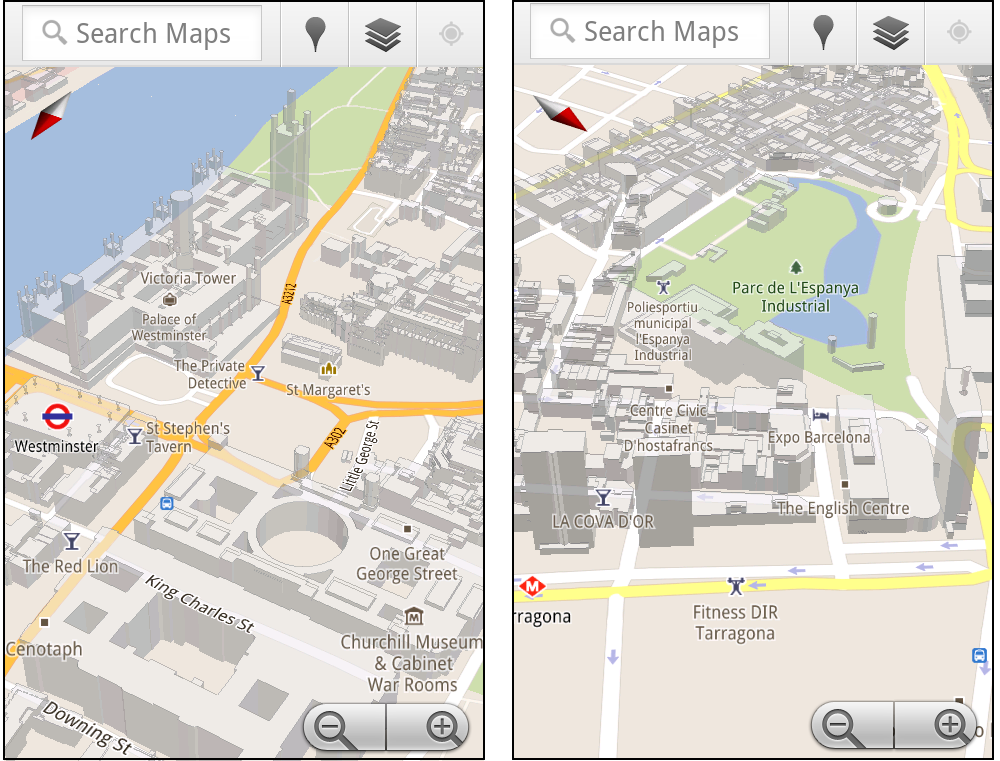
You don’t need to update the app, just open Google Maps for mobile on your phone with Android 2.0+ and zoom in to a city with 3D buildings. Enjoy!
Posted by Brian Brewington, Software Engineer
I use the wonderful Test Flight to distribute builds. One thing that Test Flight is a little picky about is build numbers. When you upload a build, it uses the build number to see if you're uploading a replacement or a new build. It will let you create a new build even if you don't remember to increment the build number, but it's an extra manual step, and then you end up with two builds with the same build number.
Because I'm forgetful, I wanted to automated this process. Basically, I wanted to increment the version short string any time we do an Archive and increment the bundle build ID any time we do a Release configuration build, but leave the version numbers alone on Debug builds.
Unfortunately, several of our projects are ones that we inherited or took over, so not every project uses the same version numbering scheme. How we increment 1.0b5 is different from how we increment 1.0.12, or a simple build number like 1058.
The way I deal with this is a Run Script Build Phase in my application's executable target that runs the following Ruby script (make sure you set the "shell" field to /usr/bin/ruby, and make sure the script is the last build phase in the application). Feel free to use this script if you wish and modify it to meet your needs. If you improve it, I'd be glad to incorporate improvements back into it. One item of note: the way that I differentiate between Archive builds and other Release configuration builds might be a bit fragile since I'm relying on an undocumented naming pattern in an environment variable.
Because I'm forgetful, I wanted to automated this process. Basically, I wanted to increment the version short string any time we do an Archive and increment the bundle build ID any time we do a Release configuration build, but leave the version numbers alone on Debug builds.
Unfortunately, several of our projects are ones that we inherited or took over, so not every project uses the same version numbering scheme. How we increment 1.0b5 is different from how we increment 1.0.12, or a simple build number like 1058.
The way I deal with this is a Run Script Build Phase in my application's executable target that runs the following Ruby script (make sure you set the "shell" field to /usr/bin/ruby, and make sure the script is the last build phase in the application). Feel free to use this script if you wish and modify it to meet your needs. If you improve it, I'd be glad to incorporate improvements back into it. One item of note: the way that I differentiate between Archive builds and other Release configuration builds might be a bit fragile since I'm relying on an undocumented naming pattern in an environment variable.
Note: I'm aware of agvtool. I avoided it for two reasons. First, I wanted more control over the numbering schemes, and second, I tried using agvtool in a build script a few years back, but at that time, there were issues when you bumped the version numbers of a project that was currently open. Those issues may have been resolved, but I didn't want to fight that battle again.
def get_file_as_string(filename)
    data = ''
    f = File.open(filename, "r")
    f.each_line do |line|
        data += line
    end
    return data
end


def handle_alpha_beta(old_value, letter, infoplist, start_of_value, end_of_value)
    parts = old_value.split(letter)
    version_num = parts[0]
    alpha_num = parts[1].to_i

    alpha_num = alpha_num + 1
    new_version = version_num.to_s + letter + alpha_num.to_s
    print "Assigning new version: " + new_version + "\n"
    new_key = "<string>#{new_version}</string>"

    part_1 = infoplist[0, start_of_value - '<string>'.length];
    part_2 = new_key
    part_3 = infoplist[end_of_value + "</string>".length, infoplist.length - (end_of_value - start_of_value + (new_key.length - 1))]

    new_info_plist = part_1 + part_2 + part_3
    new_info_plist
end

def find_and_increment_version_number_with_key(key, infoplist)

    start_of_key = infoplist.index(key)
    start_of_value = infoplist.index("<string>", start_of_key) + "<string>".length
    end_of_value = infoplist.index("</string>", start_of_value)
    old_value = infoplist[start_of_value, end_of_value - start_of_value]

    print "Old version for " + key + ": " + old_value + "\n"
    print old_value.class.to_s + "\n"
    old_value_int = old_value.to_i
    print old_value_int.class.to_s + "\n"
    if (old_value.index("a") != nil) # alpha
        infoplist = handle_alpha_beta(old_value, "a", infoplist, start_of_value, end_of_value)
    elsif (old_value.index("b") != nil) # beta
        infoplist = handle_alpha_beta(old_value, "b", infoplist, start_of_value, end_of_value)
    elsif (old_value.index(".") != nil) # release dot version
        parts = old_value.split(".")
        last_part = parts.last.to_i
        last_part = last_part + 1
        parts.delete(parts.last)

        new_version = ""
        first = true
        parts.each do |one_part|
            if (first)
                first = false
            else
                new_version = new_version + "."
            end
            new_version = new_version + one_part
        end
        new_version = new_version.to_s + "." + last_part.to_s
        print "New version: " + new_version.to_s + "\n"
        new_key = "<string>#{new_version}</string>"
        infoplist = "#{infoplist[0, start_of_value - '<string>'.length]}#{new_key}#{infoplist[end_of_value + '</string>'.length, infoplist.length - (end_of_value+1)]}"
    elsif (old_value.to_i != nil) # straight integer build number
        new_version = old_value.to_i + 1
        print "New version: " + new_version.to_s + "\n"
        new_key = "<string>#{new_version}</string>"

        part_1 = infoplist[0, start_of_value - '<string>'.length]
        part_2 = new_key
        part_3 = infoplist[end_of_value + "</string>".length, infoplist.length - (end_of_value+1)]
        infoplist = part_1 + part_2 + part_3
    end
    infoplist
end


config = ENV['CONFIGURATION'].upcase
config_build_dir = ENV['CONFIGURATION_BUILD_DIR']

archive_action = false
if (config_build_dir.include?("ArchiveIntermediates"))
    archive_action = true
end

print "Archive: " + archive_action.to_s + "\n"


print config

if (config == "RELEASE")
    print " incrementing build numbers\n"
    project_dir = ENV['PROJECT_DIR']
    infoplist_file = ENV['INFOPLIST_FILE']
    plist_filename = "#{project_dir}/#{infoplist_file}"

    infoplist = get_file_as_string(plist_filename)
    infoplist = find_and_increment_version_number_with_key("CFBundleVersion", infoplist)
    if (archive_action)
        infoplist = find_and_increment_version_number_with_key("CFBundleShortVersionString", infoplist)
    end
    File.open(plist_filename, 'w') {|f| f.write(infoplist) }
else
    print " not incrementing build numbers"
end
Today Google Maps added live traffic coverage for 13 European countries: Austria, Belgium, Czech Republic, Denmark, Germany, Ireland, Israel, Luxembourg, Netherlands, Poland, Slovakia, Spain and Switzerland. The new traffic information will automatically be available in Google Maps for Android, iOS, and mobile browsers.

Right: Getting routed around traffic in Google Maps Navigation
With the addition of live traffic data, users in these countries will now also be able to be routed around traffic in Google Maps Navigation (Beta) to save precious minutes when possible.
Posted by Noam Ben-Haim, Product Manager
Recently, we’ve been hard at work improving Android Market to give you new ways to find great applications and games, purchase books, and rent movies. Today, we’re releasing a new version of Android Market which makes all of these available on phones (Android 2.2 and higher).
In the U.S., you’ll be able to rent thousands of movies, starting at $1.99, right from Android Market on your phone. With the Videos app, available in Android Market, there’s no more waiting for downloads, syncing, or worrying about storage space. Simply sign into Android Market with your Google account, and you can rent movies from anywhere – the web, or your Android phone or tablet – and start watching instantly. You can also download movies to your device so they’re available for viewing when you don’t have an internet connection.
Also in the U.S., you can now purchase books from Android Market on your phone. Like movie rentals, books are linked to your Google account, so they’re instantly available across all of your devices – computer, phone, or tablet – without the need for wires or downloads.
You’ll be delighted to find we’ve overhauled Android Market to make it faster, easier, and more fun to discover great apps, movies, and books. We’ve created more space to feature some of the most interesting content of the week on the home page. We’ve added more top charts, with newer, more relevant items, and we’ve made it easy to swipe through these charts as you browse the store. We’ve also introduced new collections of great content, like staff picks and Editors’ Choice apps.


The new Android Market will be rolling out in the coming weeks to Android 2.2 and higher phones around the world. You don’t need to do anything - the update is automatic on supported phones. If you’re in the U.S., you’ll also be able to download the Videos app, rent movies, and buy books once you receive the new Android Market.
Your phone is about to get a lot more interesting! Enjoy the new Android Market.
Posted by Paul Montoy-Wilson, Product Manager
Also in the U.S., you can now purchase books from Android Market on your phone. Like movie rentals, books are linked to your Google account, so they’re instantly available across all of your devices – computer, phone, or tablet – without the need for wires or downloads.
You’ll be delighted to find we’ve overhauled Android Market to make it faster, easier, and more fun to discover great apps, movies, and books. We’ve created more space to feature some of the most interesting content of the week on the home page. We’ve added more top charts, with newer, more relevant items, and we’ve made it easy to swipe through these charts as you browse the store. We’ve also introduced new collections of great content, like staff picks and Editors’ Choice apps.


The new Android Market will be rolling out in the coming weeks to Android 2.2 and higher phones around the world. You don’t need to do anything - the update is automatic on supported phones. If you’re in the U.S., you’ll also be able to download the Videos app, rent movies, and buy books once you receive the new Android Market.
Your phone is about to get a lot more interesting! Enjoy the new Android Market.
Posted by Paul Montoy-Wilson, Product Manager
Today we’re announcing a new set of features in Google Shopper for Android to make it even easier to research products and find great value deals when you’re on-the-go.
First, we’ve moved features around a bit to help you perform common tasks more quickly. For example, the ‘Starred’ and ‘History’ buttons are now at the top of the page. We’ve also added new tabs to the bottom of the screen for fast navigation to Google Shopper’s newest features.
With Google Shopper, you can now find, save and redeem offers at nearby businesses through three tabs:
- Today’s Offer: part of the Google Offers beta program, this tab displays a single offer for discounted goods or services in your area. Today's Offer is currently available in Portland, Oregon, the San Francisco Bay Area and New York, with other cities to follow.
- Nearby Offers: when you click this tab, you'll see offers in the 'Eat' and 'Play' categories which nearby businesses have submitted through Google Places.
- My Offers: for those of us who occasionally misplace coupons or gloss over expiration dates, Google Shopper makes it easy to stay organized. When you come across an offer you like you can save it for later. Your saved and purchased offers appear on this tab and you can see which offers are close to expiring. To take advantage of an offer, just navigate to ‘My Offers,’ select the one you’d like, and click ‘Redeem’. In the future you’ll also be able to access and redeem your saved offers using Google Wallet.


Tap on Today’s Offer, Nearby Offers or My Offers to see great deals.
Visit Android Market to download Google Shopper 2.0, currently available for Android 2.1 and higher devices in the US and UK. If you already have the app installed you’ll automatically receive a notification to update it.
Posted by Richard Hung, Product Manager, Google Shopper team
I apologize for the relative dearth of posts here since WWDC. That week in San Francisco always tends to backlog me pretty badly (I returned from WWDC at inbox 1138 - and that's after spending the return flight answering e-mails), so I've been pretty much heads down on work-related stuff ever since. I've also, at the same time, been consciously trying to back away from the 12-15 hour days, 7 days a week schedule that I'd fallen into trying to help get MartianCraft off the ground. Those two have conspired to give me very little time for writing lately, but I think things are under control now.
I've got my semi-mythical OpenGL ES from the Ground Up 10th installment on skeletal animation nearly finished and hope to have it posted within the next couple of weeks, and it's bit of a doozy. My goal with this post is to make one of the more intimidating topics in graphics programming approachable. Fingers crossed, it's been a challenge making this topic approachable, but I think I'm getting there.
A few other bits of news.
First, work has officially started on Beginning iPhone 5 Development. Yes, I know it probably should be called Beginning iOS 5 Development, but as of right now, we're sticking with the naming sequence Apress established with the first book. Dave, Jack, and I have already started updating the book for Xcode 4, ARC, Storyboards, and all the other cool new stuff and are hoping to have the book ready to go to press when the GM version of iOS 5 ships this fall.
Second, I purchased a new domain today. There's nothing there yet, but OpenGLESBook.com is now mine, and I have big plans for it. Once Beginning iPhone 5 Development is in the can, I'm going to revisit my partially written OpenGL ES 2.0 book. I plan to revise it to use GLKit and to add material about the very cool new OpenGL ES tools we're getting with iOS 5.
As of right now, my plan is to self-publish. I'm still researching the exact process, tools, and services that I'll use, but my plan is to sell the book without DRM and at a reasonable price. I'd like to have an early access program, however since a lot of the material I'll be covering will be under NDA until iOS 5 goes GM, I can't promise that at this time.
I've got my semi-mythical OpenGL ES from the Ground Up 10th installment on skeletal animation nearly finished and hope to have it posted within the next couple of weeks, and it's bit of a doozy. My goal with this post is to make one of the more intimidating topics in graphics programming approachable. Fingers crossed, it's been a challenge making this topic approachable, but I think I'm getting there.
A few other bits of news.
First, work has officially started on Beginning iPhone 5 Development. Yes, I know it probably should be called Beginning iOS 5 Development, but as of right now, we're sticking with the naming sequence Apress established with the first book. Dave, Jack, and I have already started updating the book for Xcode 4, ARC, Storyboards, and all the other cool new stuff and are hoping to have the book ready to go to press when the GM version of iOS 5 ships this fall.
Second, I purchased a new domain today. There's nothing there yet, but OpenGLESBook.com is now mine, and I have big plans for it. Once Beginning iPhone 5 Development is in the can, I'm going to revisit my partially written OpenGL ES 2.0 book. I plan to revise it to use GLKit and to add material about the very cool new OpenGL ES tools we're getting with iOS 5.
As of right now, my plan is to self-publish. I'm still researching the exact process, tools, and services that I'll use, but my plan is to sell the book without DRM and at a reasonable price. I'd like to have an early access program, however since a lot of the material I'll be covering will be under NDA until iOS 5 goes GM, I can't promise that at this time.
(Cross-posted from the Google Docs blog)
Google Docs is about collaboration, but as many of us know, others often rely on us even when we’re nowhere near a computer. That’s why we’re excited to bring the features you need to your tablet and mobile device’s browser. Today, we've updated the look of Google Docs for mobile browsers and added the ability to sort, narrow, and share multiple docs in your mobile docs list.
To get started, go to docs.google.com from your supported device’s browser. Press Sort to organize the list of docs visible in the mobile browser, or press Narrow by to specify the subset of docs you’d like to see.

To share from your mobile docs list, select one or more documents, press the Share button, and select Share, Get the link to share for public or unlisted docs, or Email as attachment. Sharing a doc in your mobile browser works the same way as it does on the desktop.

We’re committed to improving the experience of accessing your docs from your mobile device. We’d love to hear what you think is working and what isn’t in our support forums as well as in the comments of this post.
Posted by Hossein Attar, Software Engineer
Google Docs is about collaboration, but as many of us know, others often rely on us even when we’re nowhere near a computer. That’s why we’re excited to bring the features you need to your tablet and mobile device’s browser. Today, we've updated the look of Google Docs for mobile browsers and added the ability to sort, narrow, and share multiple docs in your mobile docs list.
To get started, go to docs.google.com from your supported device’s browser. Press Sort to organize the list of docs visible in the mobile browser, or press Narrow by to specify the subset of docs you’d like to see.

To share from your mobile docs list, select one or more documents, press the Share button, and select Share, Get the link to share for public or unlisted docs, or Email as attachment. Sharing a doc in your mobile browser works the same way as it does on the desktop.

We’re committed to improving the experience of accessing your docs from your mobile device. We’d love to hear what you think is working and what isn’t in our support forums as well as in the comments of this post.
Posted by Hossein Attar, Software Engineer
One way we bring you new product features is through Google Labs—a collection of fun, experimental features you can turn on if you’re interested in the functionality. In fact, Google Maps itself started as a lab. In addition to our desktop Maps Labs, Google Maps for Android has a few tricks you can try out right from your phone. We’d like to introduce you to one new experimental feature, “Download map area," but also remind you of two other ones we already have: “Scale bar” and “Measure.”
Download map area
When you’re visiting an unfamiliar location, Google Maps for mobile is great for getting an idea of how close you are to your destination, where streets and landmarks are in relation to each other, or just for getting “un-lost.” But what if you don’t have a data signal, or you’re abroad and don’t have a data plan? We say that if you use Google Maps for mobile, you’ll never need to carry a paper map again. The “Download map area” lab in Google Maps 5.7 for Android is a step in making that statement true even when you’re offline.
Let’s say later you’re visiting Bordeaux during a trip to France. If you were to open Google Maps for mobile and zoom into Bordeaux without data coverage or wifi, you’d see the image on the left:
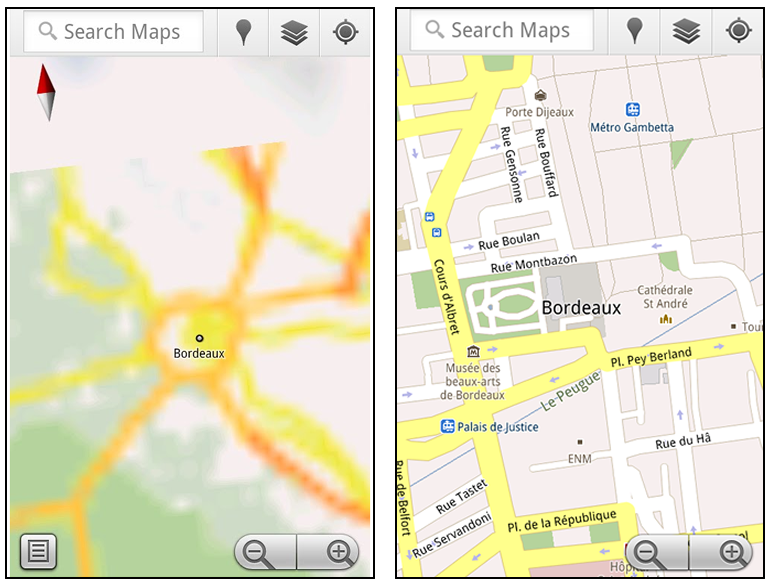
That’s not particularly useful when you’re trying to find out how close you are to the Cathedrale St. Andre. But a little advance planning and “Download map area” can help. Before you take your trip, while you still have access to WiFi or data coverage, you can open up any Places page in the world, click “More” to get the Place page menu, and download Google’s maps for a 10-mile radius.
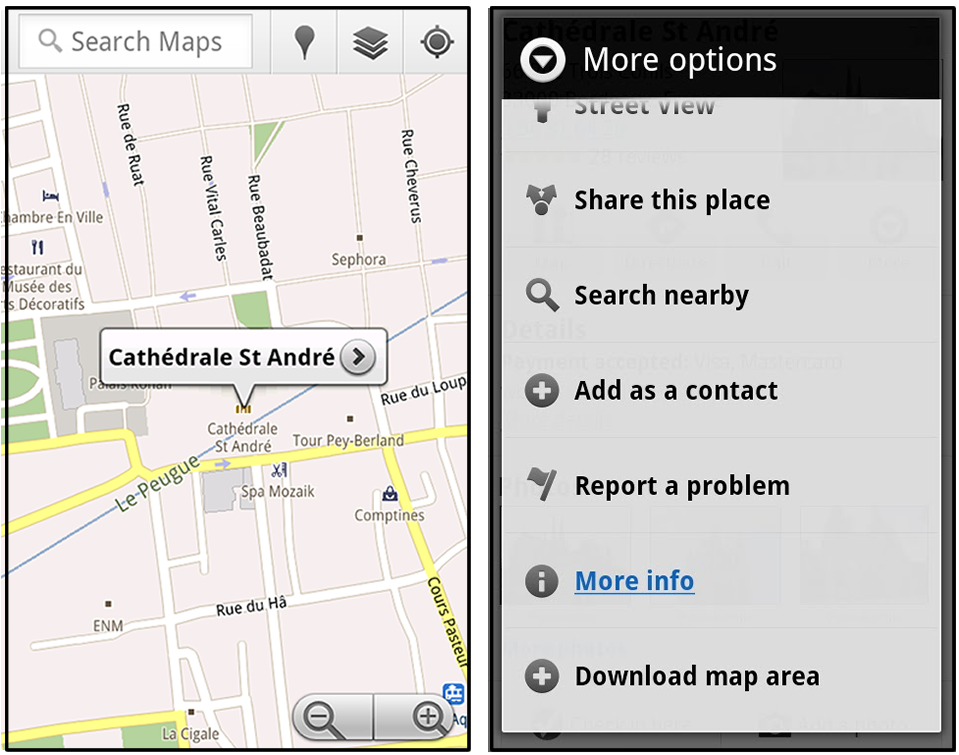
The download can take as little as a minute or two. This download stores only the base map tiles and the landmarks on the map, so you still need a data connection to see satellite view and 3D buildings, search for Places and get directions. But we hope the level of detail available will help you find your way!

All your downloaded map areas can be managed in your Google Maps cache settings so you can delete maps you no longer need or if you want to free up storage. After 30 days, all downloaded map areas will be removed from your cache; they can be re-downloaded any time.
Scale bar
Google Maps has approximately 20 different zoom levels that range from a 2,000 mile scale to a 20 foot scale. With finger gestures making it really quick and easy to zoom in and out, sometimes it’s not always clear what zoom level you’re at. What might be just a few streets away can be quite a long walk depending on the scale. To help with this, you can turn on a scale bar, which updates based on your zoom level.

Measure
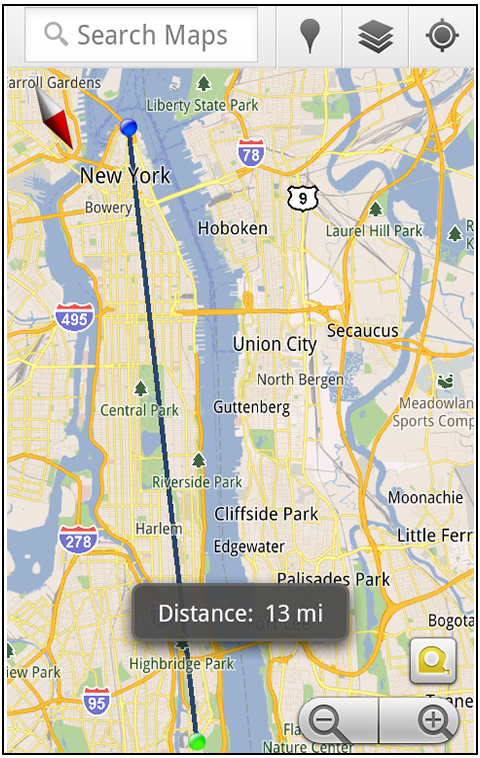
If you ever need to know the distance between San Francisco and New York (about 2602 miles) or between any other two points on the map, the “Measure” lab can help you out. Once it’s enabled, you’ll notice a tape measure icon just above the zoom buttons. After clicking that icon, you’ll be prompted to tap two points on the map and Google Maps will calculate the straight distance between those points (this direct distance is “as the crow flies”).
To access Labs on your phone, press your phone’s menu button once in Google Maps, choose “More” and select Labs. On a tablet, click the menu button in the upper-right corner of Maps. The “Download map area” lab requires Android 2.1+ and the latest version of Google Maps. We look forward to bringing you more experimental features soon and hope you enjoy trying out Labs in Google Maps for Android.
Posted by Chikai Ohazama, Director of Product Management, Google Maps for mobile